
Are you having trouble starting with your new Yealink device? Setting it up right is key for smooth communication.
Need help setting up your device? Connect Call offers expert help all over Utah. Call them at (801) 457-2255 for help.
This guide will show you how to set up your device. It’s easy to start with your new phone system.
Key Takeaways
- Easy configuration process for Yealink devices
- Expert support available throughout Utah
- Simple steps to get your device up and running
- Assistance available by calling (801) 457-2255
- Seamless communication with the right setup
Understanding Your Yealink Phone
Before you start setting up your Yealink phone, it’s important to know about the different models. Yealink is a top name in VoIP phones, known for their reliable and feature-rich devices. Knowing your phone’s parts and buttons will help you set it up easily.
Popular Yealink IP Phone Models
Yealink has a variety of IP phone models, like the T5, T4, and T3 series. Each series meets different needs, from simple to advanced.
T5 Series (T53, T54, T57)
The T5 series has a high-resolution color touchscreen and advanced features. It’s perfect for businesses with complex communication needs.
T4 Series (T41, T42, T46, T48)
The T4 series is a good mix of function and cost. Models like the T46 and T48 have features for various business settings.
T3 Series (T31, T33)
The T3 series is for smaller businesses or those just starting out. It offers basic features at a lower price.
Key Components and Buttons
Knowing your Yealink phone’s parts and buttons is key. The layout might change with each model, but you’ll find basics like mute, speakerphone, and directory.
What’s Included in Your Yealink Package
A Yealink phone package usually has the phone, power adapter, Ethernet cable, and a quick start guide. Some phones come with extra stuff like a headset or wall mount.
Connect Call offers services in many Utah cities and counties. Knowing your Yealink phone helps you get the most from our support.
Preparing for Setup
To set up your Yealink phone smoothly, you need to prepare a few things. Doing this right can prevent problems during setup.
Required Network Information
Before you start, gather some network details. You’ll need info about your internet and any firewall settings.
Internet Connection Requirements
Your internet must meet certain standards for VoIP to work well. A fast and stable connection is key.
Firewall Considerations
Firewalls might block VoIP traffic. Make sure your firewall lets VoIP through by opening the right ports.
Gathering Your VoIP Credentials
To get your Yealink phone working, you must link it to a phone account. Collect your VoIP login info, like your SIP username, password, and server address.
| VoIP Credential | Description |
|---|---|
| SIP Username | Username for SIP authentication |
| SIP Password | Password for SIP authentication |
| Server Details | IP address or domain of the SIP server |
Choosing the Optimal Phone Location
Choose a spot for your Yealink phone near a power outlet and with good network access. Need help? Call Connect Call at (801) 457-2255.
Physical Installation of Your Yealink Phone
Yealink phones are easy to set up. The installation includes putting together the phone parts, picking your power source, and linking to your network.
Assembling the Phone Components
To start, attach the stand to your desk. This gives your phone a solid base. Then, plug the handset into the right port on the phone.
Attaching the Stand
Match the stand with the slots on the phone’s back. Push it in until it clicks.
Connecting the Handset
Insert the handset cord into the phone’s port. Make sure it’s securely plugged in.
Power Options
You can power your Yealink phone with an AC adapter or Power over Ethernet (PoE). Your choice depends on your setup and what you prefer.
Connecting to Your Network
You can connect your Yealink phone to your network with an Ethernet cable or Wi-Fi, if it’s supported.
Ethernet Connection Steps
Use an Ethernet cable to link your phone to your router or switch.
Wi-Fi Setup (for supported models)
If your Yealink phone supports Wi-Fi, go to the settings menu. There, you can set up your wireless network.
Need help with installation? Connect Call offers services in Utah to help you set up your Yealink phone.
Initial Boot and Network Configuration
Getting your Yealink phone set up is key. First, you need to physically install it. Then, it will start booting up.
Understanding the Boot Process
The boot process starts your phone’s system. It gets ready for you to configure it. This usually takes a few minutes. Make sure your phone is plugged in and connected to the network.
Configuring Network Settings
You can set up your network through the phone or web interface.
Using the Phone Interface
To set up your network via the phone:
- Go to the menu on your Yealink phone.
- Choose “Settings” and then “Advanced Settings.”
- Then, pick “Network” and “WAN Settings.”
- Choose how you want to configure your network.
Using the Web Interface
Or, you can use the web interface:
- Open a web browser and type in your phone’s IP address.
- Log in with your admin details.
- Find the “Network” settings.
- Set up your network as needed.
Static vs DHCP Configuration
You can pick between static or DHCP for your network.
- Static IP Configuration: Good for networks needing fixed IP addresses.
- DHCP Configuration: Makes setting up easier by automatically assigning an IP address.
Need help with network setup? Call Connect Call at (801) 457-2255 for assistance.

Connect Call Yealink
Accessing the Phone’s Web Interface
To get the most out of your Yealink phone, you need to access its web interface. This interface lets you customize and configure your phone to fit your needs.
Finding Your Phone’s IP Address
To start, find your phone’s IP address. You can find this on the phone’s display under network settings or in your router’s connected devices list. Note down the IP address as you’ll need it to log in to the web interface.
Logging into the Web Interface
With the IP address in hand, open a web browser and type in the address. You’ll then need to log in.
Default Username and Password
The default username and password are in your phone’s manual or on the manufacturer’s website. Often, it’s “admin” for both, but it can differ.
Security Best Practices
After logging in, change the default password for better security. Pick a strong password and think about enabling two-factor authentication if it’s an option.
Web Interface Navigation Overview
Once logged in, you’ll see many configuration options. Get to know the menu to tweak settings like SIP accounts, call features, and display preferences. The web interface is easy to use, helping you customize your Yealink phone.
Setup Your Yealink Phone Account Information
Setting up your Yealink phone with the right account info is key. It makes sure your phone works well with your VoIP service. This lets you make and take calls.
Configuring SIP Account Details
To set up SIP account details, go to your Yealink phone’s web interface. Then, find the “Account” section and fill it out.
Server Settings
Put in the SIP server address from your VoIP service. It’s usually a domain name or IP address.
Authentication Information
Enter your SIP username and password. Your VoIP service provider will give you these.
Setting Up Multiple Line Appearances
For multiple lines on your Yealink phone, add more SIP accounts. This is great for businesses needing different lines for extensions.
Testing Registration Status
After setting up your SIP account, check if it’s registered. This confirms your phone is connected to your VoIP service.
Troubleshooting Registration Issues
If you have registration problems, check your SIP server and login info. Still having issues? Call your VoIP service or Connect Call at (801) 457-2255 for help.
Basic Phone Configuration
Setting up your Yealink phone is key for the best performance. You need to set the date and time, choose display settings, and access voicemail.
Setting Date and Time
Having the right date and time is vital for your Yealink phone. You must set up the NTP server and pick your time zone.
NTP Server Configuration
The NTP server keeps your phone’s time accurate. Go to your phone’s settings, find the NTP server option, and enter your preferred NTP server’s address.
Time Zone Settings
After setting up the NTP server, pick your time zone. This ensures the time on your phone is right for where you are. You can do this in the same settings menu as the NTP server.
Configuring Display Preferences
Changing your Yealink phone’s display settings can make it better for you. You can adjust screen brightness, contrast, and how long the backlight stays on.
Setting Up Voicemail Access
To get to your voicemail, you need to set up the voicemail number and the message waiting indicator.
Voicemail Number Configuration
Put your voicemail number in the right field in your phone’s settings. This number is given by your VoIP service provider.
Message Waiting Indicator
The message waiting indicator tells you when you have new voicemail. Make sure this is turned on in your phone’s settings to know right away.
By following these steps, your Yealink phone will work its best. If you need help or have more questions, Connect Call provides services throughout Utah. They offer expert help for all your VoIP needs.
Programming Function Keys and Buttons
To get the most out of your Yealink phone, it’s key to know how to program its function keys. Customizing these keys can boost your productivity and make communication smoother.
Understanding Different Button Types
Yealink phones have different buttons, like programmable function keys, soft keys, and line keys. You can change each button to do things like speed dialing, call forwarding, or checking voicemail.
Setting Up Speed Dial Keys
Speed Dial Keys let you quickly call numbers you use a lot. To set one up, go to your phone’s settings, pick the key, and enter a phone number. It’s great for calling coworkers or clients often.
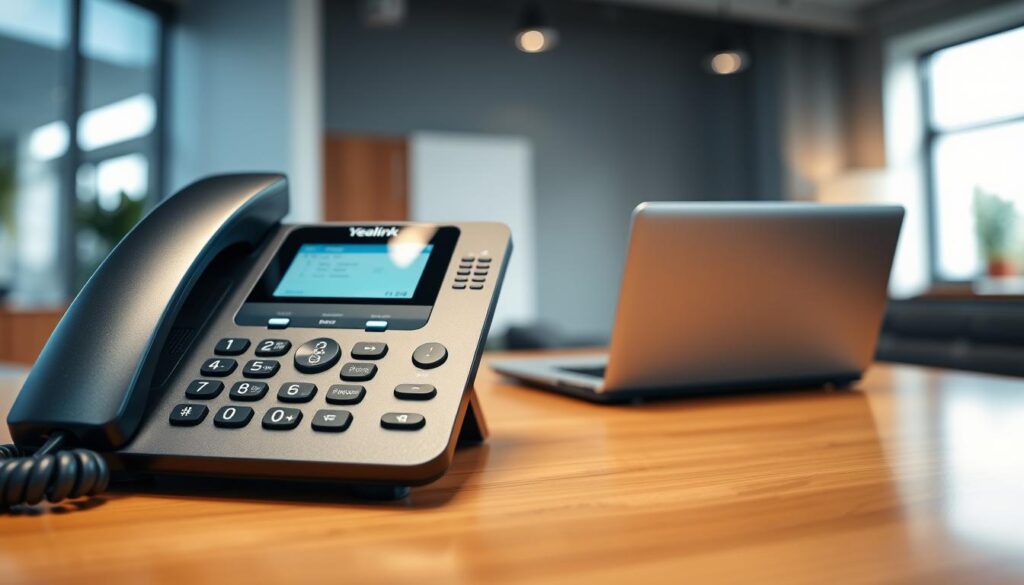
Configuring BLF (Busy Lamp Field) Keys
BLF Keys help you see if someone else is on a call. This lets you plan the best time to reach out to them. It’s a big help in managing calls.
Customizing Soft Keys
Soft Keys are on your phone’s screen and can be changed. You can make them do things like transfer calls, start a conference, or check voicemail. It’s a way to make your phone work just for you.
If you need help with programming your Yealink phone, Connect Call is here at (801) 457-2255. Making your phone’s keys and buttons work for you can really improve your experience.
Updating Your Yealink Phone Firmware
It’s important to keep your Yealink phone’s firmware updated. This ensures it works well and stays secure. Updates fix problems, make things better, and improve how you use your phone.
Checking Current Firmware Version
First, check your phone’s firmware version. Go to “Settings” and then “Status” in the menu. The version will show on the screen. Write it down to compare with the latest version on Yealink’s website.
Manual Firmware Update Process
To update your phone manually:
- Get the latest firmware from Yealink’s website.
- Go to your phone’s web interface by typing its IP address in a browser.
- In the “Upgrade” section, upload the firmware file as prompted.
Auto-Provisioning for Updates
Yealink phones can update automatically. This is thanks to auto-provisioning, which uses a TFTP/FTP server.
TFTP/FTP Server Setup
To set up auto-provisioning:
- Install TFTP/FTP server software on your server.
- Set up the server as the software guides you.
- Put the configuration files and updates in the server’s directory.
Configuration File Basics
Configuration files are key for auto-provisioning. They tell your phone where to find updates and how to set itself up. Be careful when editing these files to make sure they’re right.
By following these steps, you can keep your Yealink phone up-to-date. This ensures it works great. For help in Utah, Connect Call offers support for Yealink phones.
Advanced Yealink Features
Take your phone calls to the next level with Yealink’s advanced features. These tools make talking easier and more flexible.
Setting Up Call Forwarding
Call forwarding lets you send calls to another number. To start, go to your phone’s settings, then “Features,” and “Call Forward.” You can forward all, busy, or unavailable calls. For more help, check out Yealink T4 Series for model-specific tips.
Configuring Ring Groups
Ring groups help manage calls for multiple lines or users. To set one up, log into your phone’s web interface. Go to “Directory” and create a new ring group with the numbers you want. This spreads calls evenly among your team.
Using the Directory Features
The directory on your Yealink phone makes managing contacts easy. It includes:
Local Contacts Management
Store and manage contacts right on your phone. To add a contact, go to “Directory” > “Local Contacts” > “Add Contact.” Just fill in the details and save.
LDAP Directory Integration
For big teams, Yealink phones can connect to a central directory via LDAP. To set it up, go to your phone’s web interface. Then, navigate to “Settings” > “LDAP” and enter your server info.
Conference Call Setup
Yealink phones make it easy to have group calls. Start by calling one person, then add more by pressing “Conference” and dialing their numbers. For better phone systems, consider VoIP for more features like this.
Need help with these features? Connect Call is here at (801) 457-2255 for expert advice.
Troubleshooting Common Yealink Phone Issues
Fixing Yealink phone problems fast is key to avoiding downtime. These phones are reliable but can face issues. Knowing how to fix these problems saves time and stress.
Audio Quality Problems
Audio issues like echo, one-way audio, or poor sound can happen. These problems often stem from network issues or wrong settings.
Echo Issues
Echo during calls might be due to bad headset connections or acoustic echo. Make sure the headset is right and set up correctly to fix this.
One-Way Audio
One-way audio means only one side can be heard. It usually points to a setup or firewall problem. Check SIP settings and ensure ports are open to solve it.
Registration Failures
When the Yealink phone can’t connect to the VoIP server, it’s a registration failure. This might be due to wrong SIP details or network problems. Check SIP settings and network connection to fix it.
Network Connectivity Issues
Network problems can stop the Yealink phone from working right. Check the Ethernet connection, make sure it’s set up for the network, and verify the network’s stability to fix it.
Factory Reset Procedures
At times, a factory reset is needed to solve ongoing issues. This resets the phone to its original state.
Soft Reset vs Hard Reset
A soft reset restarts the phone without losing settings. A hard reset wipes all settings and returns it to factory settings.
Post-Reset Configuration
After a factory reset, you need to set up the phone again. This includes network, SIP accounts, and custom features.
If you can’t fix your Yealink phone, professional help is available. Connect Call offers services in Utah for troubleshooting and VoIP issues.
Connect Call Support Services in Utah
Connect Call offers expert help all over Utah for Yealink phone users. No matter where you are, our team is ready to assist with setup, configuration, and troubleshooting.
Available Support Throughout Utah
We provide support in many cities and counties across Utah. Here’s where we serve:
- Major Cities:
- Salt Lake City
- Ogden
- Provo
- Orem
- Logan
- Brigham City
- Counties:
- Box Elder County
- Davis County
- Weber County
- Cache County
Brigham City, Ogden, Logan Services
In these cities, we offer full support for Yealink phone systems. This ensures businesses run smoothly.
Salt Lake City, Orem, Provo Support
Our team is ready to help in these major hubs. We make sure businesses get the most from their Yealink phones.
County Coverage (Box Elder, Davis, Weber, Cache)
We also support the surrounding counties. We provide reliable help wherever you are.
When to Contact Professional Support
If you’re having trouble with your Yealink phone, it’s time to call for help. Issues like registration failures, audio problems, or network issues are common.
Preparing Information for Support Calls
Before you call, collect the needed info. This includes your phone’s MAC address and any error messages. It helps us help you faster.
Contacting Connect Call at (801) 457-2255
For quick help, call (801) 457-2255 or visit our contact page. Our team is ready to assist with your Yealink phone needs.
Conclusion
Setting up your Yealink phone is easy with the right help. This guide will make sure you set it up right. Connect Call offers expert help in Utah for any setup issues.
Need more help or have questions? Call Connect Call at (801) 457-2255. They’re ready to help make sure your phone works great.
Now that your Yealink phone is set up, you can use cool features like call forwarding and conference calls. For more advanced settings, check the user manual or reach out to Connect Call for help.