
Setting up a Snom phone right is key for the best performance. This is true for models like the HD100, HD101, HD350W, HD351W, or HM201. These are used in hotels and hospitality.
Getting the configuration right lets you use all the device’s features. This means you get clear and dependable calls. But, are you doing it right?
Connect Call helps set up Snom phones all over Utah. This includes places like Brigham City, Ogden, and Salt Lake City. For help, call them at (801) 457-2255.
Key Takeaways
- Proper Snom phone configuration is essential for optimal performance.
- Connect Call offers expert setup assistance across Utah.
- Snom phones like HD100 and HM201 are designed for hospitality communications.
- Correct setup ensures clear and reliable communication.
- Professional assistance can be reached at (801) 457-2255.
Understanding Your Snom Phone
To get the most out of your Snom phone, it’s key to know its parts and features. Snom has many models, each with special abilities.
Different Snom Phone Models and Their Features
Snom has various phones like the HD100, HD101, HD350W, HD351W, and HM201. Each has unique features like PoE, Gigabit Ethernet, and cordless DECT handsets. For example, the HD350W and HD351W support Wi-Fi, making network setup easier.
What’s in the Box
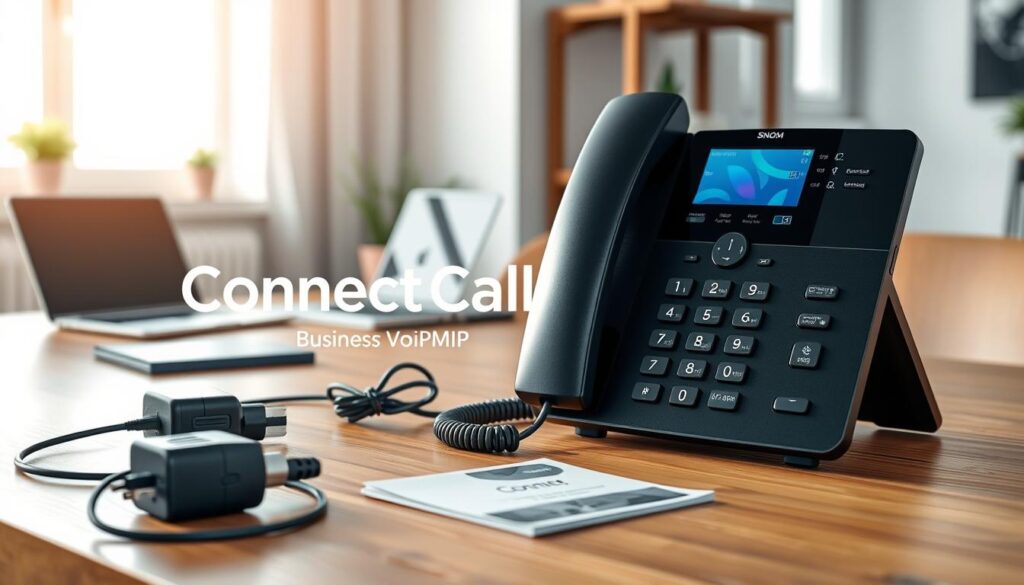
When you open your Snom phone box, you’ll find the phone, a power adapter, an Ethernet cable, and a quick start guide. Some phones come with extra stuff like a headset or a wall mount.
Key Components and Buttons
Knowing your Snom phone’s main parts is crucial. The key parts are the display screen, navigation controls, and function keys.
Display and Navigation Controls
The display screen shows important info like call details and settings. Navigation controls let you move through menus and pick options. You’ll find directional buttons and an OK button.
Function Keys and Their Purposes
Function keys on your Snom phone can be set up for different tasks. They’re often used for speed dial, call forwarding, and voicemail access. Knowing how to use these keys can really improve your experience.
By learning about these parts, you’ll use your Snom phone better and enjoy its advanced features.
Preparing for Setup
Before you begin setting up your Snom phone, make sure your network is ready. You’ll need to know a few things. These include your network setup and the power supply for your Snom phone.
Network Requirements
Your Snom phone needs a stable network to work right. Make sure your network supports VoIP technology. You’ll also need enough bandwidth for clear calls.
Power Options (PoE vs Power Adapter)
You can power your Snom phone in two ways: Power over Ethernet (PoE) or a power adapter. PoE connects your phone to both data and power with one cable. If your network doesn’t support PoE, a power adapter is a simple solution.
Gathering Necessary Account Information
To set up your Snom phone, you’ll need some account details. These are crucial for getting your phone to work.
SIP Credentials
Your SIP (Session Initiation Protocol) details are key. You’ll need a SIP username, password, and server address to register your phone with your VoIP provider.
Network Settings
You might also need to set up your network settings. This includes IP addresses, subnet masks, and DNS server addresses, based on your network setup.
| Setting | Description | Example |
|---|---|---|
| SIP Username | Username for SIP registration | user123 |
| SIP Password | Password for SIP registration | pass123 |
| SIP Server Address | Address of the SIP server | sip.example.com |
Physical Installation
Setting up your Snom phone is easy and requires a few important steps. Making sure it’s installed right will help it work well and last longer.
Connecting the Hardware
To begin, you’ll need to connect the parts of your Snom phone. There are two main steps:
Attaching the Handset
First, connect the handset to the base. Plug the handset cord into the right jack on the phone. Make sure it’s in there tight.
Connecting Network Cables
Then, connect the network cables. Use an Ethernet cable to link your Snom phone to your network. Make sure the cable fits well into the phone’s back port.
Mounting Options
Snom phones come with different mounting options. You can put it on a desk or mount it on a wall. For wall mounting, you’ll need the right screws and anchors for your wall.
Cable Management Tips
Keeping your cables tidy is key for a clean workspace. Use cable ties or clips to organize your Ethernet and power cables.
| Cable Type | Management Tip |
|---|---|
| Ethernet Cable | Secure with cable ties to prevent tangling |
| Power Cord | Use cable clips to keep it away from foot traffic |
By following these steps, you’ll set up your Snom phone quickly and efficiently.
Initial Power-Up and Configuration
After installing your Snom phone, it’s time to power it up and set the initial settings. This is easy and guided by a simple setup wizard.
Powering On Your Snom Phone
First, plug your Snom phone into a power source. You can use Power over Ethernet (PoE) or a power adapter. Once plugged in, your phone will start up and show the Snom logo.
Navigating the Setup Wizard
The setup wizard will help you with the first steps. You’ll need to pick your language and region. Then, you’ll set up date and time settings and network preferences.
Setting Language and Region
Picking the right language and region is key for your Snom phone to work right. It makes sure date and time formats and other settings are correct.
Date and Time Configuration
Having the right date and time is important for call logs and other features. You can set your Snom phone to sync with a time server automatically. This keeps everything accurate.
By using the setup wizard, you can set these settings easily. If you run into problems, check your user manual or reach out to your service provider for help.
Key Configuration Steps:
- Power on your Snom phone
- Follow the setup wizard to configure basic settings
- Set your language and region
- Configure date and time settings
Network Configuration
Setting up your SNOM phone’s network is key for good communication. A well-set network lets your phone connect smoothly to your network or internet. This makes calls clear and without breaks.
Connecting to Ethernet
To link your SNOM phone to Ethernet, just plug an Ethernet cable into the phone and the other end into your router or switch. This gives a strong and quick connection.
Wi-Fi Setup (for supported models)
If your SNOM phone can use Wi-Fi, you can connect to a network by going to the settings menu. Pick Wi-Fi and then your network from the list. Type in your Wi-Fi password to finish the link.
DHCP vs Static IP Configuration
Your SNOM phone can get an IP address automatically with DHCP or use a static IP. DHCP is easy for most users. But, businesses might want static IPs for fixed addresses.
Setting DNS Servers
DNS servers change domain names to IP addresses. You can set your SNOM phone to use certain DNS servers by putting in their IP addresses in the settings.
Configuring VLAN Settings
VLAN settings help manage and secure your network. On your SNOM phone, set VLAN ID and priority in the network settings for better network control.
| Configuration Option | Description | Best For |
|---|---|---|
| DHCP | Automatic IP address assignment | Home users, simple networks |
| Static IP | Manually assigned IP address | Businesses, complex networks |
By setting up these network options right, your SNOM phone will work well and safely in your network.
Setup Your SNOM Phone Account and Registration
Setting up your SNOM phone’s SIP account is key to starting with your new device. This process has several important steps. These steps make sure your phone can make and receive calls.
SIP Account Configuration
To set up your SIP account, you need to get into your SNOM phone’s settings menu. There, you’ll put in your SIP server details and your login info.
Server Settings
Your SIP server settings include the server address, port number, and the transport protocol. Your VoIP service provider will give you these details.
Authentication Credentials
You’ll also need to enter your SIP username and password. These are used to log into your SIP server. This makes sure only authorized devices can use your account.
| Setting | Description | Example |
|---|---|---|
| SIP Server Address | The address of your SIP server | sip.example.com |
| SIP Username | Your SIP account username | user123 |
| SIP Password | Your SIP account password | pass123 |
Registering with Your Service Provider
After setting up your SIP account, you need to register your SNOM phone with your VoIP service provider. This step is vital for turning on your service and making or receiving calls.
“Registering your device with your service provider is essential for ensuring that your phone is recognized on the network and that you can make and receive calls without any issues.”
Testing Your Connection
After registering your SNOM phone, test your connection. Make a few test calls to check your audio quality and call connection.
By following these steps, you can make sure your SNOM phone is set up and ready to use.
Customizing Your Snom Phone Settings
Customizing your Snom phone settings can make a big difference. It lets you tailor the phone to your liking. This way, you can use it more efficiently and enjoy it more.
Display Settings
The display settings let you change how the phone looks. You can adjust the brightness and contrast to your comfort.
Brightness and Contrast
To change the brightness and contrast, go to the display settings. Here, you can:
- Make the screen brighter or dimmer for your space.
- Adjust the contrast to make text clearer.
Screensaver Options
You can also change the screensaver options to show info or images when idle. You might see:
- The time and date.
- A slideshow of pictures.
Audio Settings
Audio settings are key for a great experience. They let you change how your phone sounds.
Ringtone Selection
You can pick from many ringtones for calls. To pick a ringtone:
- Go to the audio settings.
- Look through the ringtones.
- Pick the one you like best.
Volume Controls
Changing the volume controls lets you set sound levels for ringtones, handset, and speakerphone. Make sure the volume is right for you.
Function Key Programming
Function keys can be set for quick access to features you use often. This includes:
- Speed dial numbers.
- Direct access to voicemail.
- Other custom functions.
Setting Up Speed Dial
Speed dial lets you quickly call numbers you dial often. To set up speed dial:
- Go to the function key programming menu.
- Assign a speed dial number to a key.
- Enter the number you want to dial.
By following these steps, you can make your Snom phone work better for you. It will make your experience much better.
Advanced Configuration Options
Exploring your SNOM phone’s advanced settings opens up a world of customization. You can make your device fit your exact needs.
Using the Web Interface
The web interface is a key tool for setting up your SNOM phone. First, find your phone’s IP address. Look for it in “Settings” or “Status” on your phone.
Accessing the Web Configuration
To get into the web setup, just enter the IP address in your browser. You’ll need to log in with your admin details.
Security Best Practices
When you’re in the web interface, remember to keep your phone secure. Use strong passwords and make sure your network is safe.
Setting Up Multiple Lines
If you handle many calls or accounts, setting up multiple lines is easy. Just go to the “Lines” or “Accounts” section in the web interface and set it up.
Call Forwarding and Voicemail Configuration
Call forwarding and voicemail are key for managing your calls. You can set these up through the web interface or directly on the phone.
Security Settings
To boost your SNOM phone’s security, follow a few steps. This includes setting passwords and turning on encryption.
Password Protection
It’s important to set a strong password for your SNOM phone’s admin area. This keeps it safe from unauthorized access.
Encryption Options
Encrypting your VoIP calls can protect your data. Check your phone’s encryption options and set it up right.
By diving into these advanced settings, you can greatly improve your SNOM phone’s performance and security.
Firmware Updates and Maintenance
Keeping your SNOM phone’s firmware up-to-date is key for its best performance and safety. Updates bring new features, fix bugs, and add security patches. These updates protect your device from threats.
Checking Current Firmware Version
To see your SNOM phone’s firmware version, go to the settings menu. Look for “System Information” or “Device Info.” There, you’ll find your firmware version details.
Updating Firmware Procedures
Updating your SNOM phone’s firmware is easy. Just go to the settings menu and choose “Firmware Update” or “Software Update.” Make sure your phone is connected to the internet. Then, just follow the instructions on the screen.
Regular Maintenance Tips
Regular care helps your SNOM phone last longer. Here are some tips:
- Cleaning Your Phone: Use a soft, dry cloth to clean your phone. Don’t use harsh chemicals or rough materials that could harm it.
- Backup and Restore Settings: Back up your phone’s settings often. This way, you won’t lose your data if you need to reset your device. Most SNOM phones let you back up settings through the web interface or settings menu.
Cleaning Your Phone
Regular cleaning keeps your phone looking good and working well. Make sure to clean the microphone and speaker areas well. This helps keep your audio clear.
Backup and Restore Settings
Backing up your settings means you can quickly get back to how you like things if you reset or update your firmware. It’s a smart thing to do often.
Troubleshooting Common Setup Issues
Having trouble with your SNOM phone setup can be annoying. But, fixing common problems is usually easy. Issues like network problems, registration failures, and poor audio quality are common.
Network Connectivity Problems
Make sure your Ethernet cable is plugged in right or your Wi-Fi is strong. Check your network settings to see if your SNOM phone is set up correctly. For more help, check out Snom’s setup guide.
Registration Failures
Registration failures often happen because of wrong SIP account settings. Double-check your SIP login info to make sure it matches your VoIP service provider’s details.
Audio Quality Issues
Audio problems like echo or one-way audio can be a pain. For echo problems, try turning down the speaker or using a headset. For one-way audio, check your firewall settings to see if they’re blocking RTP packets.
Echo Problems
Using a headset can often fix echo issues by stopping feedback loops.
One-Way Audio Troubleshooting
Make sure your firewall lets RTP traffic through. If it doesn’t, you might get one-way audio problems.
Factory Reset Procedure
If nothing works, you might need to do a factory reset. This can vary by model, so check your manual or ask a pro for help.
Getting Professional Help in Utah
Still having trouble? Call Connect Call Services at (801) 457-2255. They help in places like Brigham City, Ogden, Logan, Salt Lake City, Orem, Provo, and more.
| Issue | Troubleshooting Steps |
|---|---|
| Network Connectivity | Check Ethernet/Wi-Fi connection, verify network settings |
| Registration Failure | Verify SIP credentials, check VoIP provider settings |
| Audio Quality | Adjust volume, use headset, check firewall settings |
Conclusion
Setting up your SNOM Phone is now complete. You’re ready to enjoy its features. This guide has shown you how, from start to advanced settings.
You’ve set up your SNOM Phone for the best performance. If problems arise, help is ready in Utah.
Knowing your SNOM Phone’s features and settings is key. This guide has prepared you to use your device to the fullest.